
Connect Your AI Client
Set up the connection between your AI client and your site over MCP, with per-client config.
BuildPress runs an MCP server inside your own WordPress site. To use it, your AI client connects to that server the same way the official WordPress mobile app does: over HTTPS, with a standard WordPress Application Password. There is no BuildPress account, no proxy, and no relay in the middle. This page walks you through the Connection screen and the per-client config each tool needs.
The Connection screen
Everything starts at WordPress Admin -> BuildPress -> Connection. The MCP server ships off, so until you enable it every request to your site is rejected and no AI client can reach it.
- 1
Enable MCP Access
This master toggle ships OFF. Turning it on starts accepting requests. Pick an Access Mode: choose Read + Write so your AI can actually build, not just read. You can also set an optional Idle Timeout (1 to 10 hours) so a connection auto-disables after a stretch of no activity. Idle Timeout is off by default.
- 2
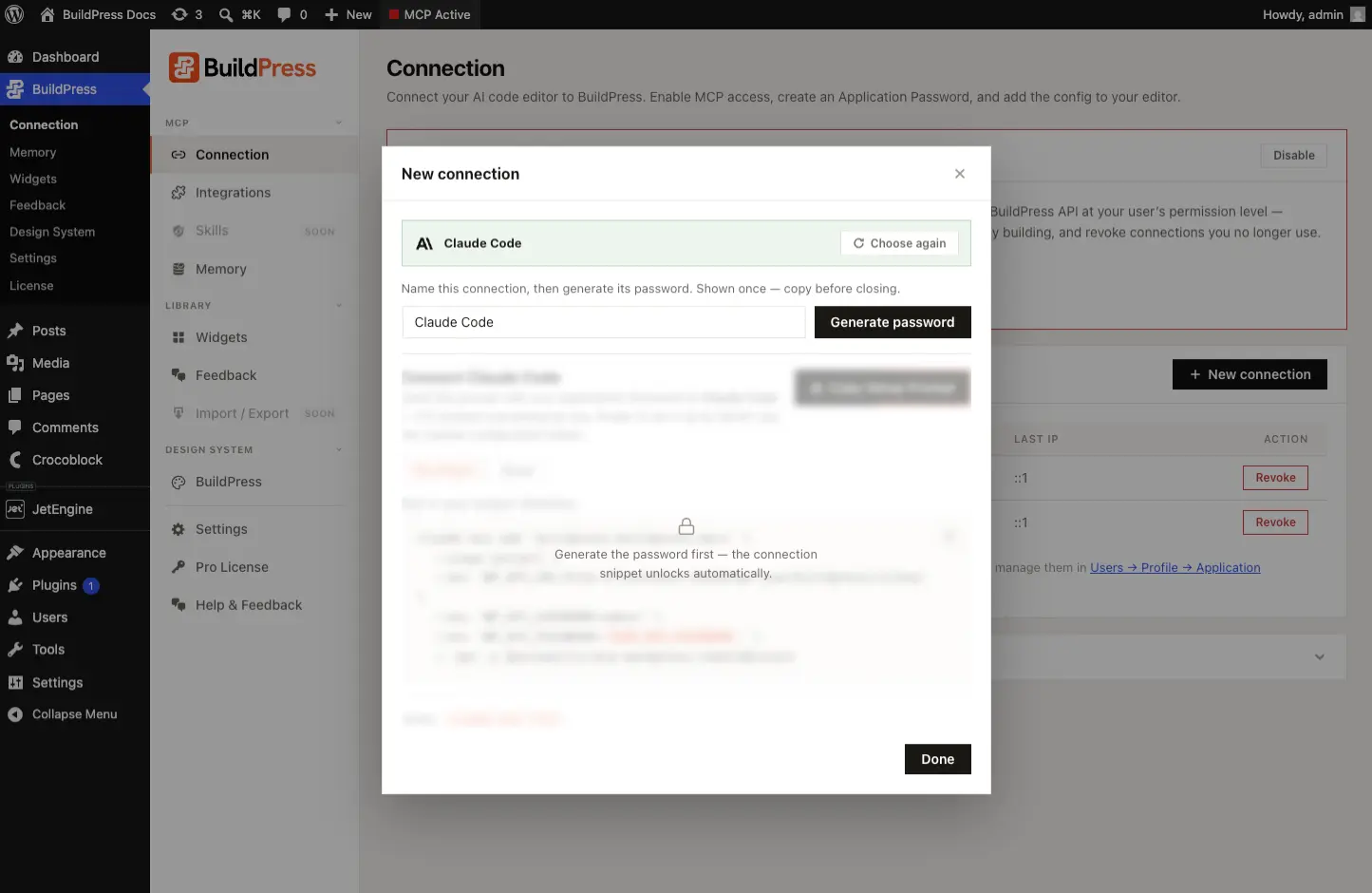
Start a new connection
Click New connection, pick your AI client from the list, then name it so you can recognize it later (for example 'Cursor on my laptop'). The name only helps you tell connections apart in wp-admin.
- 3
Generate the password
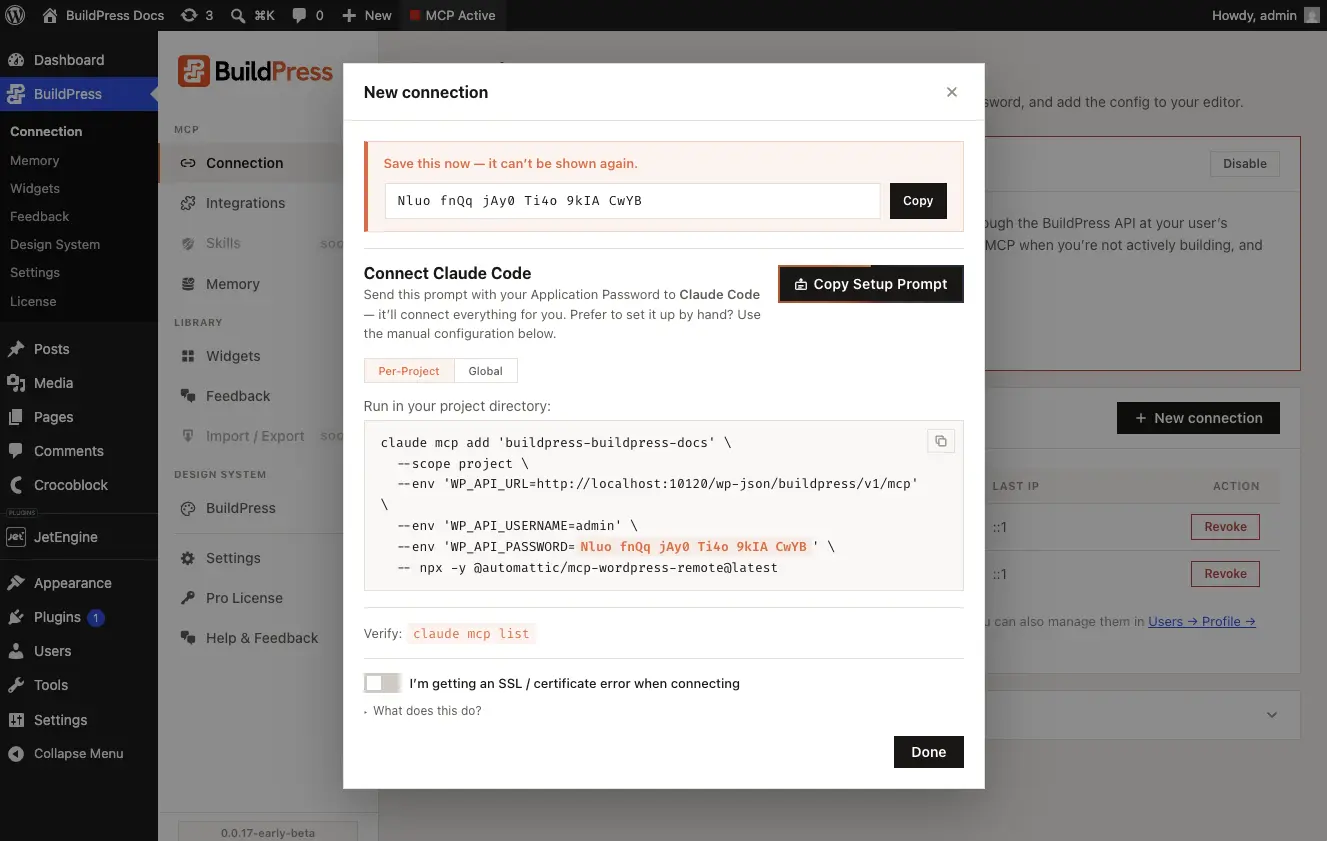
Click Generate password. This mints a standard WordPress Application Password labeled with a 'BuildPress:' prefix. It is shown ONCE, with the warning 'Save this now, it can't be shown again.' WordPress stores only a hash, so copy it before you leave the screen.
- 4
Copy the config
Copy the per-client config snippet (JSON, TOML, or shell), or click 'Copy Setup Prompt' to get an AI-ready instruction you paste into your client. The Setup Prompt tells your client where its config file lives and asks it to verify the connection for you.
The three settings the bridge needs
Your client almost never talks to the raw URL directly. The generated config runs the Automattic bridge @automattic/mcp-wordpress-remote through npx, and the bridge speaks WordPress REST with Application Password auth. The bridge reads three environment variables:
WP_API_URL: your MCP endpoint,https://your-site.com/wp-json/buildpress/v1/mcp(include the/v1).WP_API_USERNAME: your WordPress login (the user the connection runs as).WP_API_PASSWORD: the Application Password you just generated, not your normal WordPress password.
Claude Code
Claude Code takes a single command. Paste the env values from your Connection screen, then run it in your project (or with -s user for a global connection):
claude mcp add buildpress \
  --env 'WP_API_URL=https://your-site.com/wp-json/buildpress/v1/mcp' \
  --env 'WP_API_USERNAME=your-wp-login' \
  --env 'WP_API_PASSWORD=YOUR_APP_PASSWORD' \
  -- npx -y @automattic/mcp-wordpress-remote@latest
Other clients
Most other clients use a standard mcpServers block. The shape is the same everywhere; only the file path changes per client (for example .cursor/mcp.json for Cursor, .vscode/mcp.json for VS Code, ~/.codeium/windsurf/mcp_config.json for Windsurf, .github/copilot/mcp.json for GitHub Copilot). Drop in the bridge command and your three env vars:
{
  "mcpServers": {
    "buildpress": {
      "command": "npx",
      "args": ["-y", "@automattic/mcp-wordpress-remote@latest"],
      "env": {
        "WP_API_URL": "https://your-site.com/wp-json/buildpress/v1/mcp",
        "WP_API_USERNAME": "your-wp-login",
        "WP_API_PASSWORD": "YOUR_APP_PASSWORD"
      }
    }
  }
}
A couple of clients use their own format. Codex reads TOML at ~/.codex/config.toml, and JetBrains sets MCP servers under Settings -> Tools -> AI Assistant -> MCP (2025.1+). The Connection screen hands you the exact snippet for whichever client you picked, so you do not have to hand-write any of these.
Supported clients
BuildPress generates ready-to-paste config for a catalog of clients. The Connection page recommends Claude Code, Claude Desktop, and Codex if you have not picked one yet. The full list:
- Claude Code (CLI)
- Claude Desktop (App)
- Codex (CLI)
- Cursor (IDE)
- VS Code / Copilot (IDE)
- Windsurf (IDE)
- Cline (IDE)
- Zed (IDE)
- Roo Code (IDE)
- JetBrains (IntelliJ, WebStorm, PhpStorm, and more)
- GitHub Copilot (IDE)
- Amazon Q (CLI)
- Gemini CLI (CLI)
- Or any MCP-compatible client.
Verify the connection
Once the config is saved, confirm your client can see BuildPress. In Claude Code, run claude mcp list and look for buildpress in the output. In any client, you can also just ask:
List the BuildPress tools you can access, then read my site info.If your AI lists BuildPress tools and reads back details about your site, the connection is live and you are ready to build. If it cannot, the issue is almost always one of the three env vars or a network gotcha, not the bridge itself.
Connection not working?
If your client reports an SSL or certificate error, a stripped Authorization header, or a request blocked by a firewall or security plugin, head to the Troubleshooting page. It covers serving a full cert chain, whitelisting the Authorization header for /wp-json/buildpress/*, allowing POST through Wordfence, Sucuri, or Cloudflare, and confirming the REST API is not disabled.
See Troubleshooting for SSL, firewall, and Authorization-header fixes, and the requirements if you are not sure your host or WordPress version is supported.