
The Feedback System
Every site becomes its own client-review system, with comments pinned on the live page.
Every BuildPress site becomes its own self-contained client-review system. Reviewers leave located comments directly on the live page, each one pinned to the element it refers to. Every pin is stored on your own WordPress site, never centralized. If you run several sites, each one has its own independent feedback system. Nothing is pooled.
On by default
Feedback ships on by default, so the review screen is available across the site as soon as BuildPress is active. You can turn it off (or back on) from the Feedback admin page at WP Admin -> BuildPress -> Feedback, using the master toggle. While it is off, the query parameter that opens the review screen is completely inert.
- In this version, reviewers are administrators. Access is a WordPress capability, so a future reviewer allow-list can add non-admin clients later.
- Feedback items are unlimited. There is no cap meter.
- Each pin lives in your own database (two tables plus screenshot files), so nothing leaves your server.
One site, one system
A user with several sites has several fully independent feedback systems. Nothing is shared between them. One contrast worth noting on data handling: a license expiry preserves your feedback, but uninstalling BuildPress deletes the pins and their screenshots, because they are review artifacts.
The Feedback screen
Open the review screen by loading any front-end page with the ?bp-feedback query parameter, for example site.com/about/?bp-feedback. You can also toggle it from the WordPress admin bar. The label you see is "BuildPress Feedback."
https://your-site.com/about/?bp-feedbackIt is a full-screen takeover, not an overlay. A list of feedback sits on the left. The real page renders on the right inside a preview iframe, so any theme, builder, or template shows up unmodified. A device switcher previews the page at Desktop (1512px), Tablet (834px), or Mobile (390px). To leave a comment, click a single element on the page and type. That element gives the AI an actionable target later.
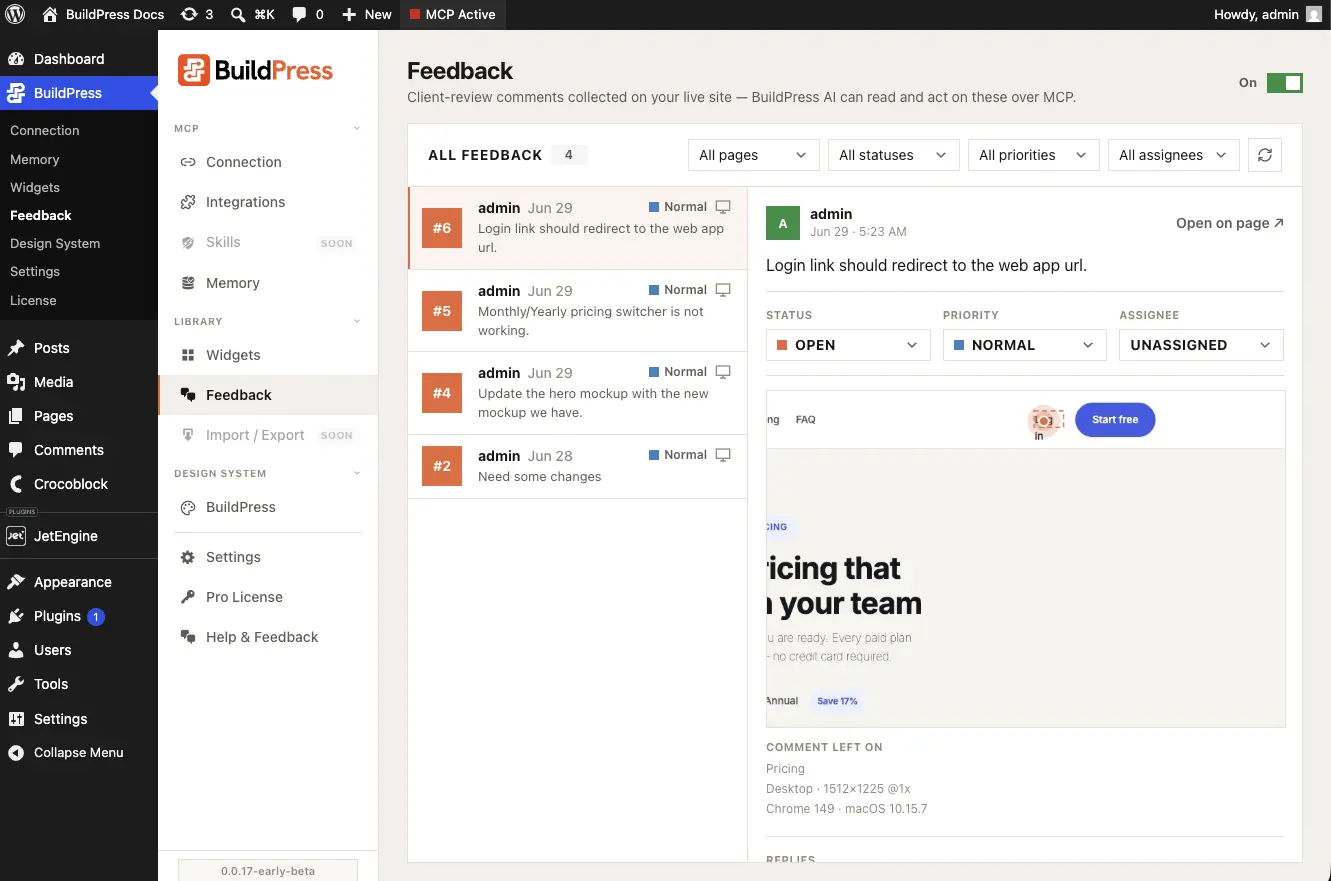
- 1
Open the page you want to review
Load the front-end URL with ?bp-feedback appended, or use the Feedback toggle in the admin bar.
- 2
Pick a device size
Use the device switcher to preview at Desktop, Tablet, or Mobile before you comment, so the pin captures the viewport you mean.
- 3
Click the element and type
Click the exact heading, button, image, or section you want changed, then write your note. The click anchors the comment to that element.
What each comment captures
When you create a feedback item, BuildPress auto-captures the context the AI needs to act on it later. Each pin records:
- A screenshot of the reviewer's actual viewport, the element anchor, and the viewport dimensions.
- A stable, human-facing number (#1, #2, and so on) used everywhere, including by the AI. Always refer to an item by its number, for example #5.
- A thread of typed messages: the reviewer's text, dated "Reopened" markers, and system audit lines such as "BuildPress AI moved this to In review."
- A status: Open, In progress, In review, or Complete.
- A priority: low, normal, or high.
- An assignee: Unassigned (the default), a team member, or BuildPress AI.
How status moves
A comment from the item's creator auto-reopens their own item. A comment from anyone else never changes the status. The lifecycle runs Open to In progress to In review to Complete.
Managing feedback
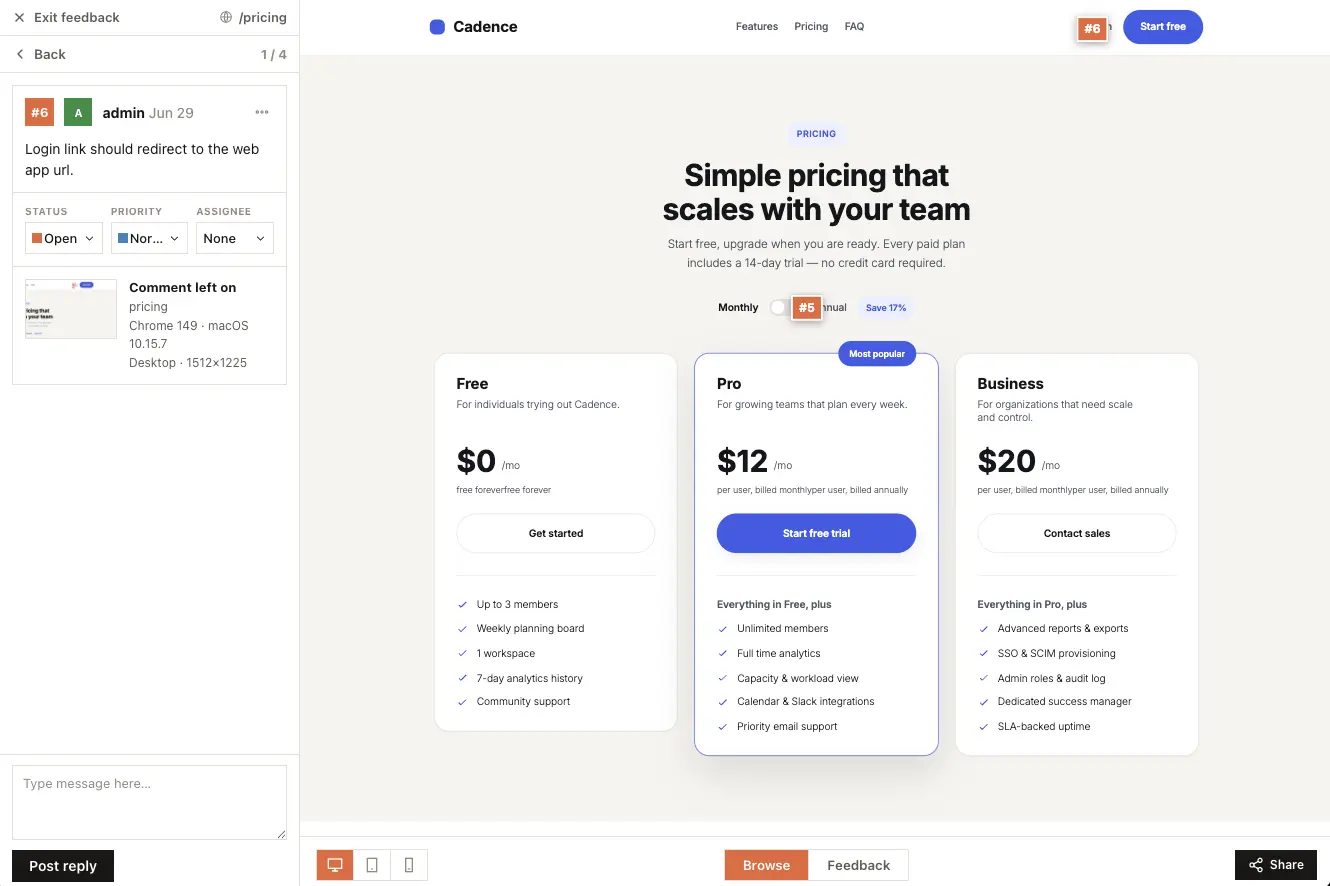
Manage everything from WP Admin -> BuildPress -> Feedback. The page describes itself as "Client-review comments collected on your live site, BuildPress AI can read and act on these over MCP." From here you get the master on/off toggle, a filterable list, and a detail view.
- Filter the list by status, priority, or assignee.
- Open the detail view to see the screenshot, the full thread, and the item's details.
- Change the status, priority, or assignment, or hard-delete an item (single or bulk).
- Deletion is the only way to remove an item. Completing it does not remove it.
Mentions and notifications
Comment threads support @mentions. Type @ and an autocomplete lists the site's users, so you can tag a specific teammate on a pin. Press Cmd/Ctrl+Enter to send a comment without leaving the keyboard, and click any attached image to open it full-size in a lightbox.
BuildPress can email your team when feedback needs attention. Configure who hears about what at WP Admin -> BuildPress -> Settings, on the Feedback tab.
- Toggle emails per event: a new comment, a reply, an assignment, or an @mention.
- Choose recipients by WordPress role or as a hand-picked list of users, and add extra email addresses beyond your site's users.
- Any user can mute their own feedback emails from their WordPress profile, so notifications stay opt-out per person.
Letting the AI fix it
The AI can read your feedback and apply fixes with its normal build tools. It works only Unassigned or BuildPress-AI-assigned items, sets each one to In review after a fix, and never auto-Completes. For the full behavior, when it defers, and the prompts you can paste, see Fixing feedback with AI.
A paste-ready first pass for your AI:
Check this site's feedback and fix what you can.