
Security
App Passwords, kill switches, read-only mode, and an append-only audit log.
BuildPress is built to stay locked down by default and to put you in control. The MCP server runs on your own server, it ships off, and you decide who can connect, what they can do, and how long the door stays open.
Authentication
Connections use standard WordPress Application Passwords over HTTPS, not a custom BuildPress token. You create an Application Password in wp-admin, it is shown once (WordPress stores only a hash), and you paste it into your AI client. Each connection lists Created, Last Used, and Last IP, and you can revoke any one of them instantly from wp-admin. Disabling MCP does not delete these passwords, so revoking is always a deliberate, per-connection action.
Application Passwords are a core WordPress feature, so they sit cleanly alongside security plugins like Wordfence, Sucuri, and iThemes Security. They require HTTPS or a local/dev environment. The connecting WordPress user needs at least the Editor role, and admin-only tools additionally require an administrator. A reviewer account with a lower role simply cannot reach the build tools.
Revoke from your phone
Because connections are plain WordPress Application Passwords, you can revoke a laptop's access from any device that can reach wp-admin. The next AI command on that connection is rejected immediately.
Three kill switches
Three independent controls guard the MCP server. They work separately, so disabling any one of them blocks all MCP access.
- Master Switch: the whole MCP server is off until you enable it. While it is off, every request is rejected and no external tool can reach your site. It is intended to be on only while you are connected and working.
- Domain Locking: enabling MCP locks it to your current domain. If the site is cloned or moved, MCP is treated as disabled until you re-enable it, so a copied database cannot expose your MCP server on another domain.
- Idle Timeout: an optional auto-disable after 1 to 10 hours of no activity (off by default). An idle connection does not stay open indefinitely, and you re-enable it with one click.
Read-only or read and write
You choose the Access Mode. You can run MCP read-only, and write and delete tools are blocked unless you choose Read + Write. In read-only mode your AI can inspect pages, tokens, and content but cannot change anything. When a write is attempted in read-only mode, the next AI command is rejected with a message telling you to switch the Access Mode to Read + Write.
Paste-ready prompts to confirm what your AI is allowed to do:
Are you connected read-only, or can you write to my site right now?List my pages but do not change anything.
Audit log
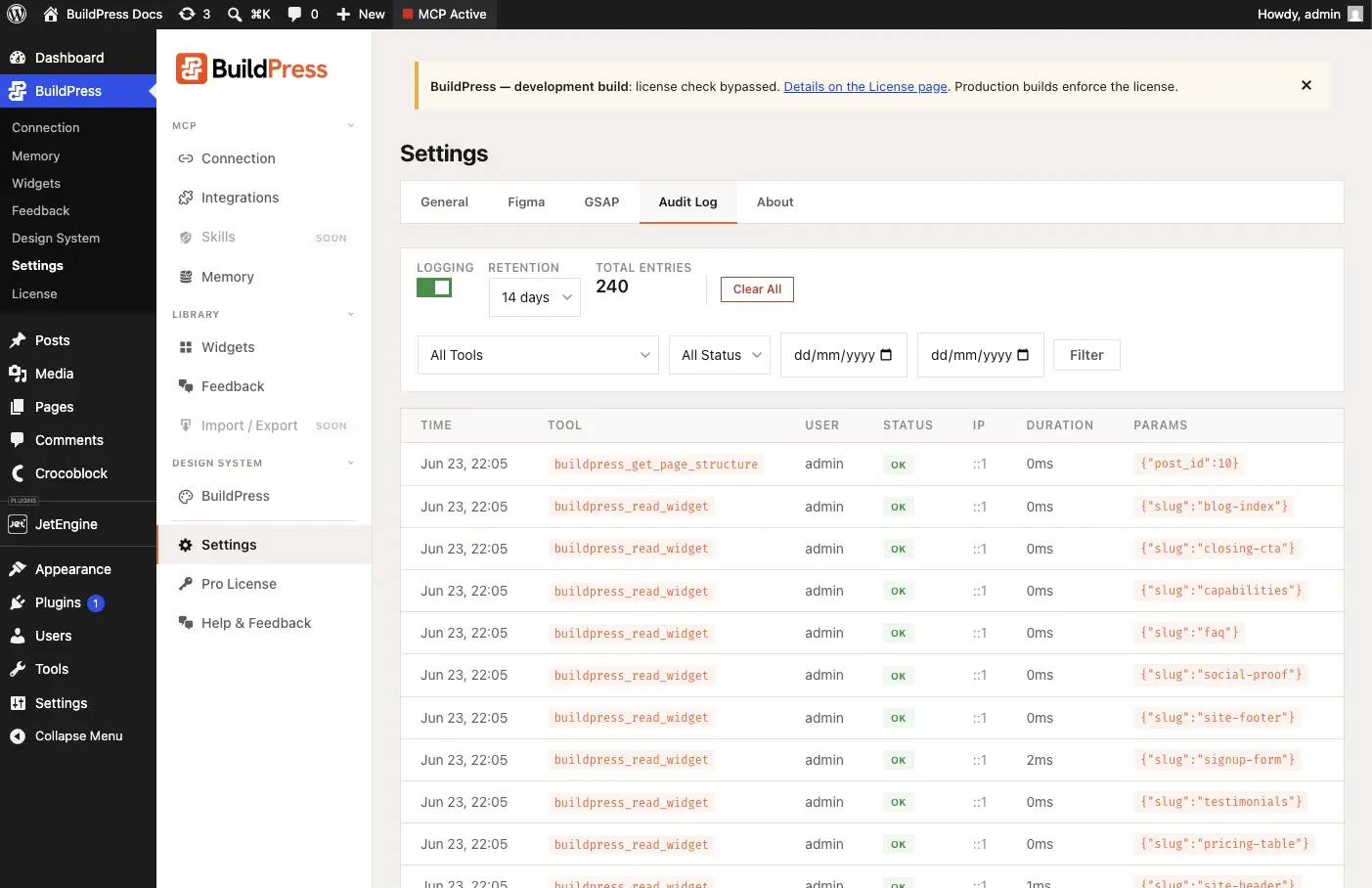
Every MCP tool call is logged to your own database. Each entry records the tool name, the user, the timestamp, success or error, the IP, the key parameters, and the execution time. From the AI's perspective the log is append-only: no MCP tool can modify or delete it, so the record of what happened cannot be tampered with by the same system that is acting on your site. You control retention (the default is 14 days). View it on the Audit Log admin page.
What your AI cannot do
Your AI works through a defined set of WordPress, builder, design-system, and content tools. It cannot step outside them. Specifically, it cannot:
- read wp-config.php or any credentials,
- install, activate, or delete plugins,
- create or modify user accounts,
- run arbitrary PHP,
- touch the filesystem directly, or
- modify the audit log.
For the connection settings that drive all of this, see Connect your AI client.