
Licensing and Activation
One paid plugin, priced by site count, and what happens when a license lapses.
BuildPress is one paid plugin, and every feature ships in it. There is no free tier and no separate Pro edition. The plans differ in only one thing: how many sites the license covers.
The plans
Pick a plan by the number of sites you run, not by the features you want. Every plan includes every feature, with no feature gates between plans.
Solo: 1 site.Team: 100 sites.Agency: unlimited sites.
Each plan is billed Yearly or once as a Lifetime license. The widget library, Project Memory, the Feedback review system, the design system, and every ability are the same on Solo as they are on Agency. See how it works for what those features do.
Activate your license
Activation happens once, from the WordPress admin.
- 1
Open the License screen
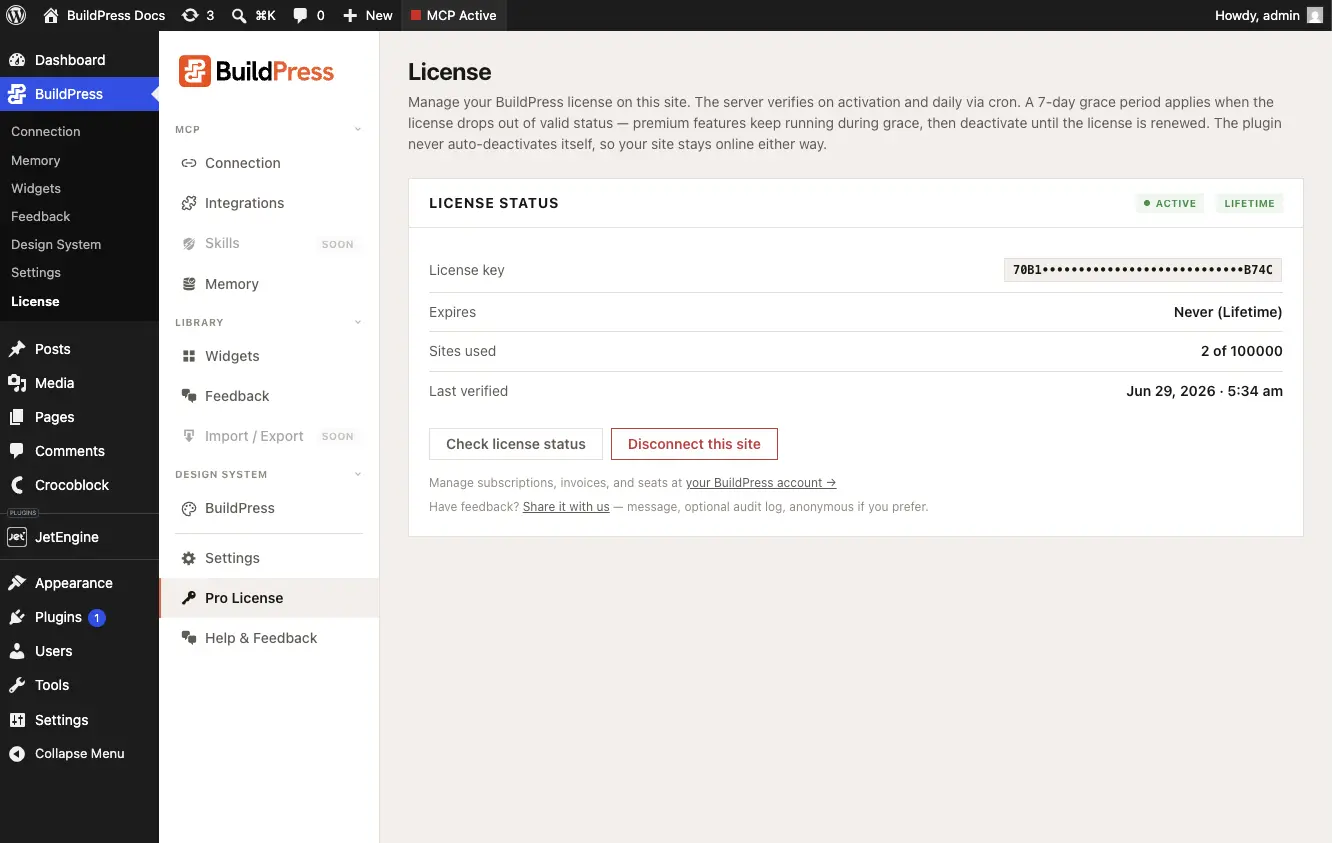
In wp-admin, go to BuildPress, then License.
- 2
Enter your key
Paste the license key from your purchase, then click Activate.
- 3
Stay verified automatically
A daily check re-verifies the license, plus an opportunistic check when you use the plugin. The check uses back-off, so a brief rate limit from the license server never flips a valid install to invalid.
If a license lapses
When a license is no longer active, the next AI build command is rejected and plugin updates stop. Your work is not touched. The in-product message tells your AI client that the build tools are paused until the license is active again, and that it clears on its own once the license server confirms the key.
Your data stays put. The widget library, Project Memory, your project history, and the audit log all live in your own WordPress database and are never deleted. Even deleting the plugin keeps the Project Memory table and the widget files in wp-content/buildpress. Renewing reactivates instantly, with no migration and nothing to rebuild.
License states worth knowing
The License screen shows one of these states for your site.
- Active: verified and current. The AI build tools run normally.
- Grace: past the expiry date but inside the renewal window. Features stay on with a renew reminder, so a briefly unreachable license server never pauses a paying site.
- Expired, cancelled, or revoked: the build tools are paused until you renew. Your data is preserved.
- Inactive: no key has been entered yet.
- Site-URL mismatch: the license is bound to a different site URL, usually after a clone or a move. Click Reconnect to mint a fresh slot for the new URL without touching the original site.
Lifetime licenses
A Lifetime license never expires. It does not enter the grace or expired states, so the build tools stay on for the life of the plan.
You also need an AI client subscription
BuildPress provides the tools; your AI provides the brain. Alongside your BuildPress license, you need your own active subscription to an MCP client such as Claude, Cursor, or Windsurf. BuildPress has no AI of its own in the loop for normal builds.
Once your license is active, see quick start to connect your AI client and build your first page.